An easy and free way to set up these checks is UptimeRobot. If this guide isn't enough, or you want a step-by-step guide for alerts through Telegram, check out this guide written by phoenix.
Set up an alert contact
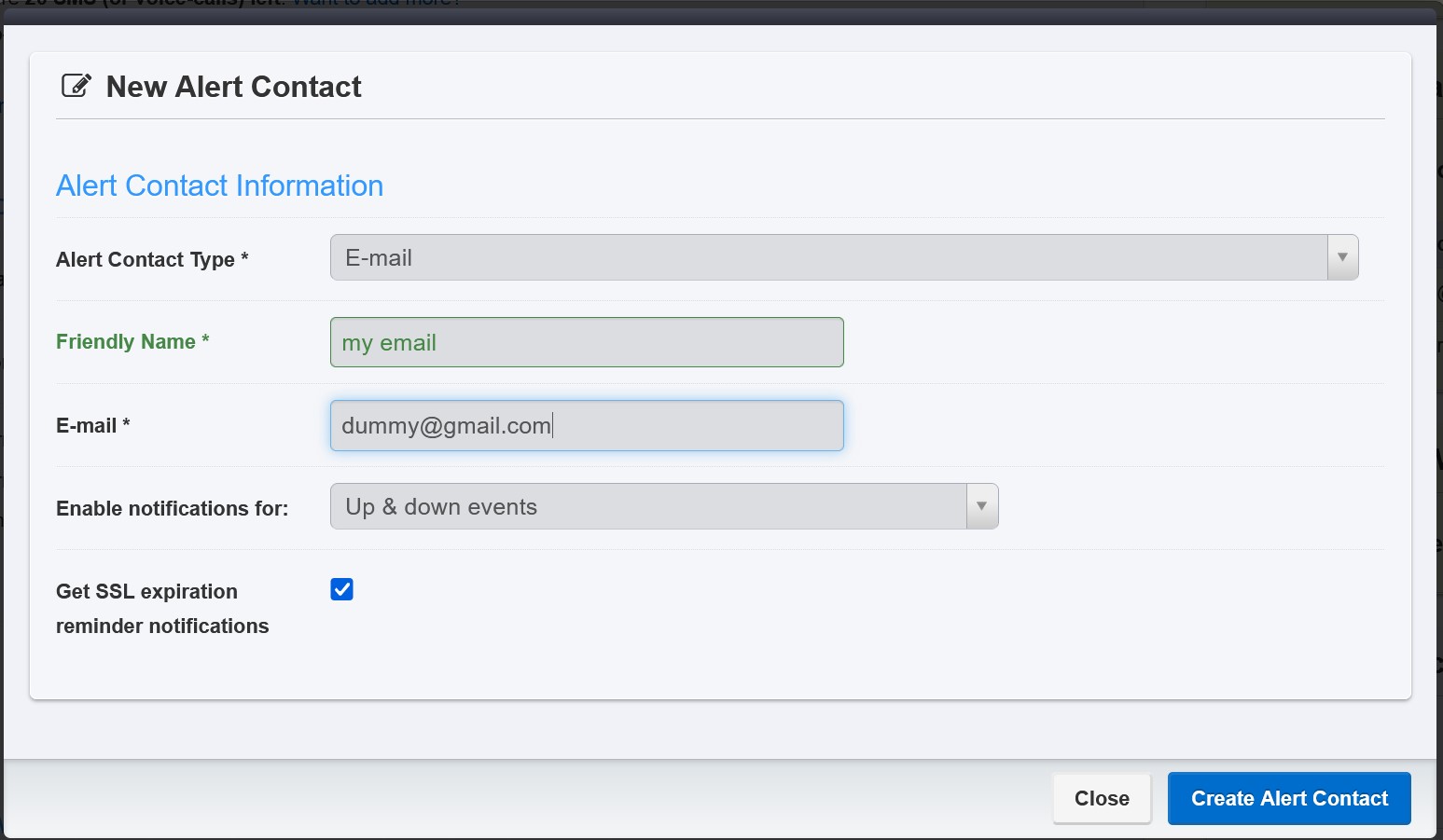
After creating an UptimeRobot account, go to My Settings and add an alert contact. There are different types of alert contacts you can create (email, Telegram, …). If you install the UptimeRobot mobile app, your phone also appears there automatically, so you can enable push notifications through the app.
Here is an example of setting up notifications by email:
Every monitor below is a Keyword monitor. Set it to alert when keyword not exists on the website (or keyword should be present in the mobile app), and pick the alert contacts on the right. With an UptimeRobot Pro subscription you can also enable recurring alerts every few minutes for as long as the problem lasts.
Monitor node state
This monitor checks whether your node is in the Ready state, meaning it's connected to the network and actively taking part in consensus rounds.
-
Add a new Keyword monitor for your L0 profile:
- Friendly name: anything that lets you recognise the monitor.
- Keyword:
Ready - URL (or IP): the URL for your network below. Replace 111.111.111.111 with your node IP address.
Mainnet
https://api.nebula-tech.io/dag/v1/nodes/state/mainnet/111.111.111.111?layer=l0Integrationnet
https://api.nebula-tech.io/dag/v1/nodes/state/integrationnet/111.111.111.111?layer=l0Testnet
https://api.nebula-tech.io/dag/v1/nodes/state/testnet/111.111.111.111?layer=l0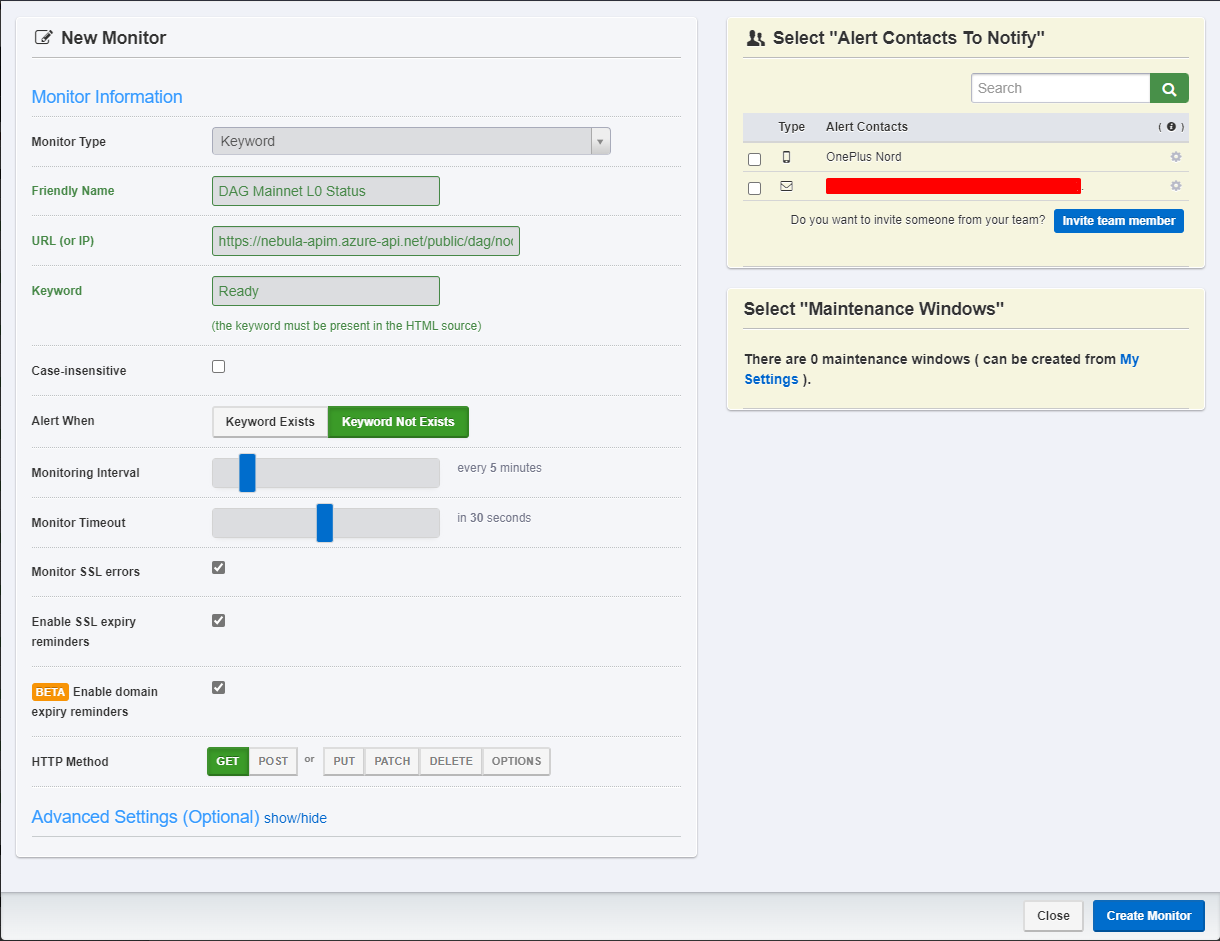
-
Add a second Keyword monitor for your L1 profile, with the same settings and the
layer=l1URL:Mainnet
https://api.nebula-tech.io/dag/v1/nodes/state/mainnet/111.111.111.111?layer=l1Integrationnet
https://api.nebula-tech.io/dag/v1/nodes/state/integrationnet/111.111.111.111?layer=l1Testnet
https://api.nebula-tech.io/dag/v1/nodes/state/testnet/111.111.111.111?layer=l1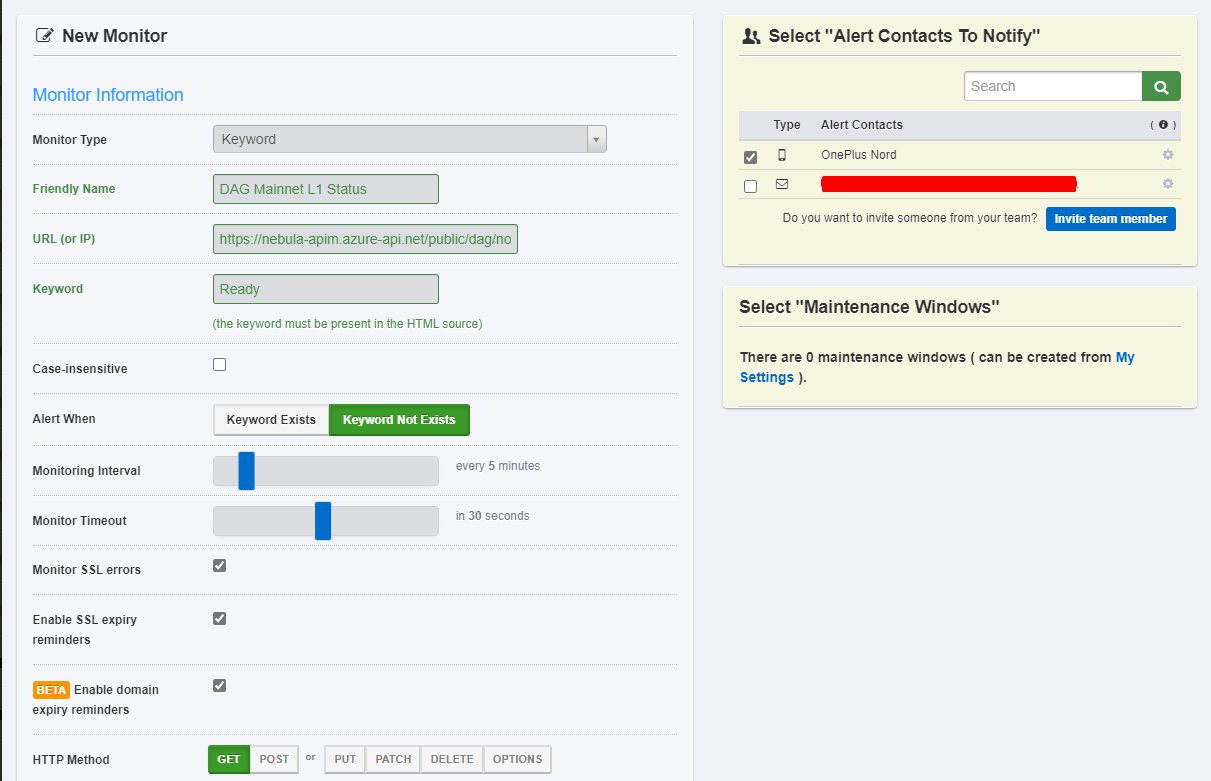
- That's it! UptimeRobot now checks the state of your node in the cluster and notifies you whenever one of the profiles isn't Ready.
Monitor validator rewards
Mainnet only. On mainnet, rewards are distributed every snapshot. This API checks whether your node received any rewards in the last 15 minutes, and it's recommended to monitor it too.
-
Add a new Keyword monitor that checks whether your node wallet address appears in the output
of the URL below. If it's missing, your node hasn't received rewards in the last 15 minutes.
- Friendly name: anything that lets you recognise the monitor.
- Keyword: your node wallet address.
- URL (or IP):
https://api.nebula-tech.io/dag/v1/nodes/rewards/wallets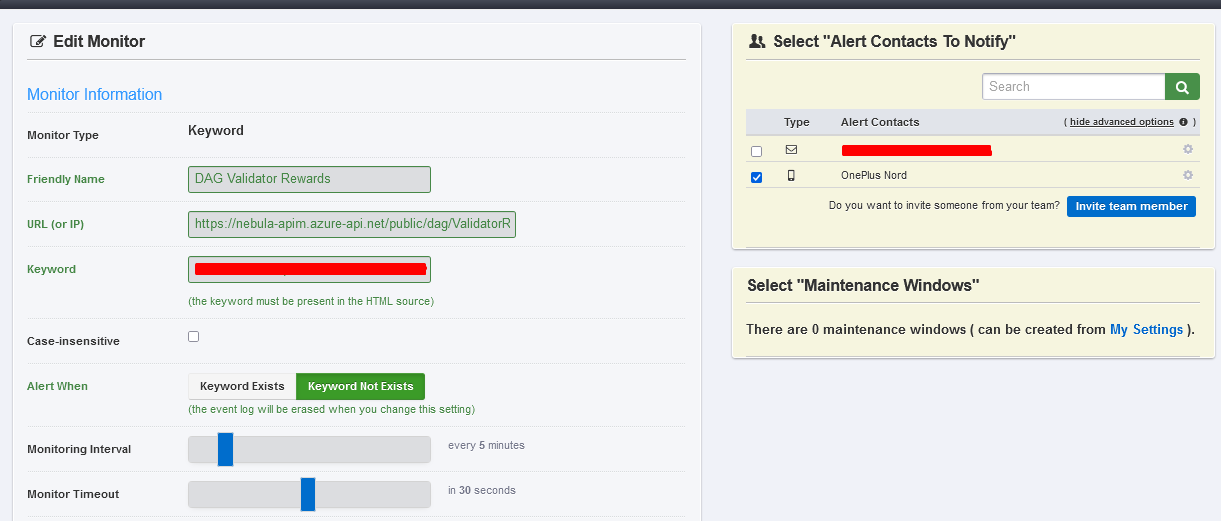
You can also see every reward your node wallet earns in the DagScan Reward Tracker.
Monitor cluster connection
This monitor checks whether your node IP or ID is connected to the cluster, but not the state of the node. If you already set up the node state monitors above, you don't need this one. It's included for completeness and reference.
-
Add a new Keyword monitor for your L0 connection that checks whether your
node IP address or node ID (whichever you prefer) appears in the output of the URL below. If it's missing,
your node isn't connected to the L0 network.
- Keyword: your node IP address or node ID.
Mainnet
http://l0-lb-mainnet.constellationnetwork.io/cluster/infoIntegrationnet
http://l0-lb-integrationnet.constellationnetwork.io/cluster/infoTestnet
http://l0-lb-testnet.constellationnetwork.io/cluster/info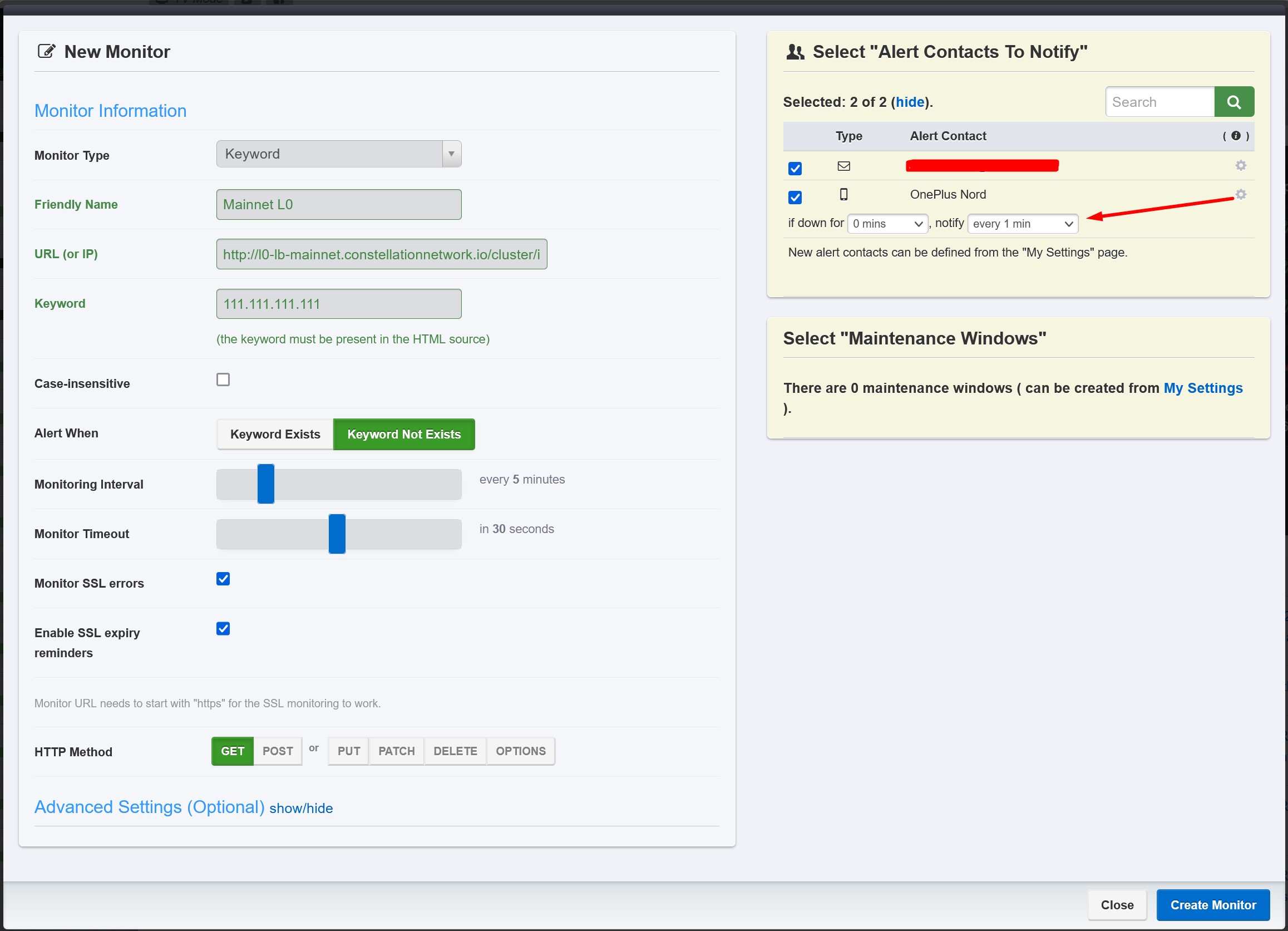
-
Add the same monitor for your L1 connection:
Mainnet
http://l1-lb-mainnet.constellationnetwork.io/cluster/infoIntegrationnet
http://l1-lb-integrationnet.constellationnetwork.io/cluster/infoTestnet
http://l1-lb-testnet.constellationnetwork.io/cluster/info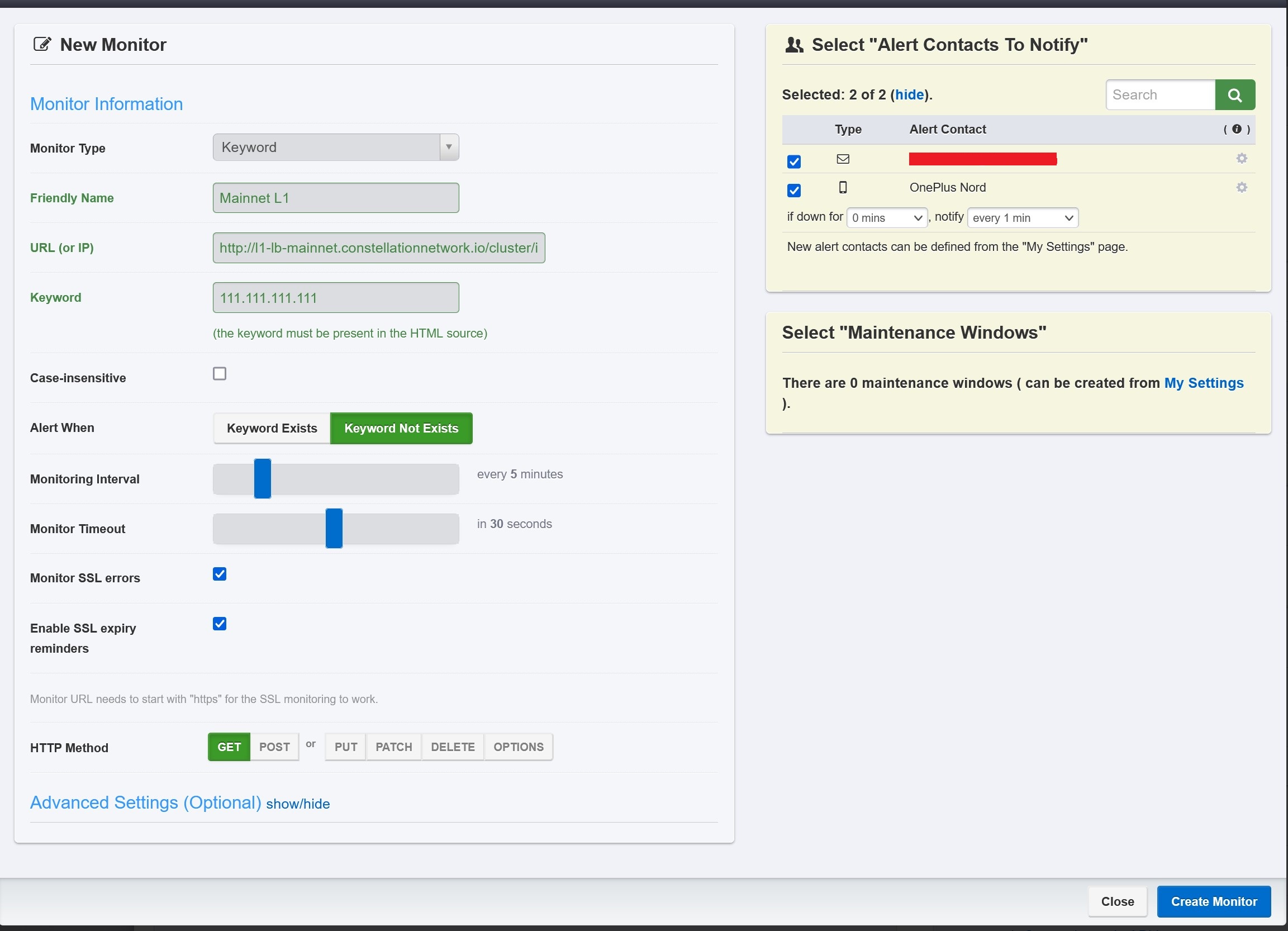
- That's it! UptimeRobot now notifies you whenever your node drops out of the cluster.